5 Ways to Check Your IP Address
5 Ways to Check Your IP Address
Knowing your public IP address is more useful than most people realize. Whether you need to verify that your VPN is working, whitelist your IP on a remote server, configure firewall rules, or simply understand what location data websites can see about you — it all starts with finding your public IP.
Here are five reliable methods, each suited to different situations.
Method 1: Web-Based IP Lookup
The simplest approach requires nothing more than a browser. Visit ip.utilo.kr and your public IP address appears instantly. Along with the IP itself, you will see your ISP, approximate geolocation, and AS number — enough to get a quick snapshot of your network identity.
No software installation is needed, and it works identically on mobile devices. This is the recommended method for anyone who wants a fast, no-fuss answer.
Method 2: Terminal / Command Prompt
If you spend your day in a terminal, checking your IP from the command line is faster than opening a browser.
macOS / Linux:
curl ifconfig.mecurl ip.utilo.kr/api/ipWindows (PowerShell):
(Invoke-WebRequest -Uri "ifconfig.me").ContentWindows (Command Prompt):
nslookup myip.opendns.com resolver1.opendns.comThe nslookup approach uses a DNS query instead of an HTTP request, which makes it useful in restricted network environments where outbound HTTP traffic is limited.
Method 3: API Integration (For Developers)
When you need to retrieve your IP programmatically — inside a script, a CI/CD pipeline, or an application — an API is the right tool. api.ip.utilo.kr returns IP information in JSON format, making it straightforward to parse.
curl -s https://api.ip.utilo.kr | jq .Common use cases include automatically adding a deployment server’s IP to a security group whitelist, monitoring for external IP changes, or logging the source IP of scheduled tasks for audit purposes.
Method 4: Router Admin Page
Your router’s administration interface shows the public IP assigned by your ISP under the WAN or internet connection settings. Typically, you can access it by navigating to 192.168.0.1 or 192.168.1.1 in your browser.
The advantage of this method is that it does not depend on any external service. However, if your ISP uses CGNAT (Carrier-Grade NAT), the IP shown on your router may be an ISP-internal address rather than your true public IP. If the address falls within the 100.64.0.0/10 range, CGNAT is in effect and you should cross-check with an external method.
Method 5: Search Engine Query
Type “what is my IP” into Google or Bing, and your public IP address appears at the top of the results page. This is the fastest way to get just the IP with zero extra steps, though it typically does not include supplementary details like ISP or geolocation.
Public IP vs Private IP: Which One Did You Just Find?
All five methods above reveal your public IP — the address that identifies your network on the internet and that external services see when you connect. Your private IP, on the other hand, is the address assigned to your device within your local network (e.g., 192.168.1.x). You can find it with ipconfig on Windows or ifconfig / ip addr on macOS and Linux.
For a deeper look at how these two types of addresses relate through NAT, see Public IP vs Private IP: Differences and How to Check.
IPv6 Support
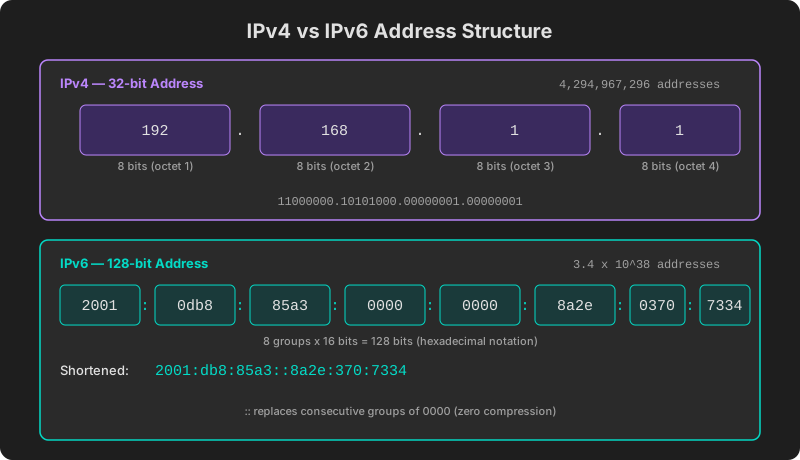
While most residential connections still rely on IPv4, an increasing number of ISPs now assign IPv6 addresses alongside IPv4. ip.utilo.kr detects and displays both protocols. If you want a broader understanding of how IP addressing works across both versions, read the Complete Guide to IP Addresses.