How to Change Your IP Address: VPN, Proxy, and Router Reset
How to Change Your IP Address: VPN, Proxy, and Router Reset
Your IP address is the unique number that identifies you on the internet. There are many situations where you might need to change it — you have been blocked from a service, you want to strengthen your online privacy, you need to access region-restricted content, or you are troubleshooting a network issue.
This guide walks through the most practical methods for changing your IP address, along with their trade-offs.
Method 1: Use a VPN
A VPN is the most straightforward and reliable way to change your IP address. It routes your internet traffic through a remote server, so websites see the VPN server’s IP instead of yours. By selecting a server in a specific country, you instantly receive an IP address from that region.
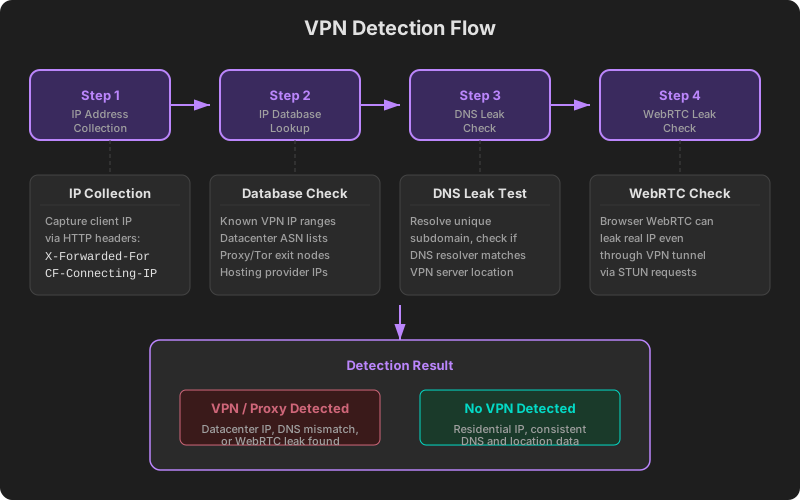
VPNs also encrypt your traffic, providing an additional layer of security — especially useful on public Wi-Fi networks. Be cautious with free VPNs, as they often impose speed limits or collect user data. A reputable paid service is generally the better choice. To learn how websites detect VPN usage, see VPN Detection Methods.
Method 2: Use a Proxy Server
A proxy server also masks your real IP address. HTTP proxies handle web browsing traffic, while SOCKS proxies support a broader range of protocols. The key difference from a VPN is that proxies typically do not encrypt your traffic. This makes them suitable when you simply need a different IP without the overhead of full encryption.
You can configure a proxy directly in your browser settings or install a proxy browser extension for convenience.
Method 3: Restart Your Router
Most home internet connections receive a dynamic IP from the ISP. Turning off your router for 5 to 10 minutes and powering it back on may prompt your ISP to assign a new IP address. However, this depends on the ISP’s policies — some may reassign the same address. ISPs with shorter DHCP lease times are more likely to issue a fresh IP on reconnection.
Method 4: Contact Your ISP
If you have a static IP, restarting the router will not change it. In this case, you need to contact your ISP’s customer support and request an IP change. Business lines may incur additional fees, and the process may take some time to complete.
Method 5: Switch to Mobile Data
This is the quickest temporary solution. Turning off Wi-Fi and switching to mobile data gives you a different IP assigned by your cellular carrier. Toggling airplane mode on and off forces a fresh connection to the carrier network, often resulting in a new IP address. This is particularly useful when you need an immediate change.
Important Caveat: Changing Your IP Does Not Make You Anonymous
Changing your IP address does not guarantee complete anonymity. Websites can still track you through cookies, browser fingerprinting, account credentials, and other identifiers beyond your IP. Changing your IP is one layer of privacy protection, but comprehensive security requires additional measures.
Understanding the difference between public and private IP addresses helps clarify what IP changes actually accomplish. For more detail, read Public vs Private IP.
Verify the Change
After changing your IP, always confirm that the change took effect. Visit ip.utilo.kr to instantly see your current public IP address, location, and ISP information. Compare the result with your previous IP to verify that the change was successful.