DNS Lookup Guide: Finding IP Addresses from Domain Names
DNS Lookup Guide: Finding IP Addresses from Domain Names
When you type google.com into your browser, how does your computer figure out which server to connect to? The answer is DNS (Domain Name System) — often called “the phonebook of the internet.” DNS translates human-readable domain names into the IP addresses that computers use to communicate.
This guide covers the fundamentals of DNS, the most important record types, practical command-line tools for DNS lookups, and how caching affects the system.
What Is DNS?
DNS (Domain Name System) is a distributed database system that translates domain names (e.g., example.com) into IP addresses (e.g., 93.184.216.34).
All internet communication is based on IP addresses, but expecting humans to memorize numbers like 142.250.196.110 is unrealistic. DNS lets us use readable names like google.com while the underlying communication still happens via IP addresses.
The DNS Resolution Flow
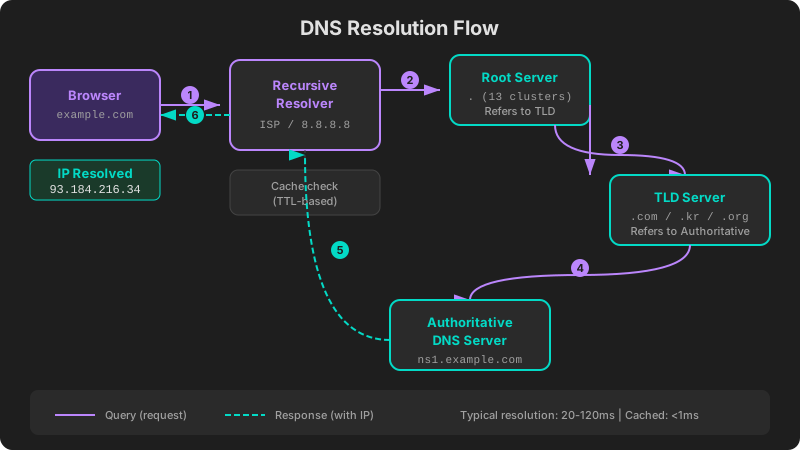
Translating a domain name into an IP address involves multiple steps:
- Browser cache check: The browser looks for a previously cached result.
- Operating system cache check: The OS DNS cache is consulted.
- Recursive resolver query: The request goes to your ISP’s DNS server or a public DNS like
8.8.8.8(Google) or1.1.1.1(Cloudflare). - Root server query: The resolver asks one of the 13 root server clusters for the TLD’s nameserver.
- TLD server query: The
.com,.kr, or.orgTLD server provides the authoritative nameserver address. - Authoritative nameserver query: The final DNS server holding the domain’s records returns the IP address.
- Response and caching: The IP address propagates back to the browser, with caching at each layer.
This entire process typically completes within 20 to 120 milliseconds. If the result is already cached, the response time drops to under 1 millisecond.
DNS Record Types
DNS supports various record types, each serving a different purpose. Here are the most important ones.
A Record (Address Record)
The most fundamental DNS record, mapping a domain to an IPv4 address.
example.com. IN A 93.184.216.34- Multiple A records enable load balancing across several servers.
- The first record queried when accessing a website.
- Different subdomains can point to different IPs (e.g.,
api.example.com→ a separate server).
AAAA Record (IPv6 Address Record)
The IPv6 equivalent of the A record, mapping a domain to an IPv6 address.
example.com. IN AAAA 2606:2800:220:1:248:1893:25c8:1946- Essential for IPv6 connectivity.
- Named “AAAA” because IPv6 addresses are four times the length of IPv4 (128 bits vs 32 bits).
- Many modern websites configure both A and AAAA records (dual stack).
For a deeper understanding of IPv4 vs IPv6, see Complete Guide to IP Addresses.
MX Record (Mail Exchange Record)
Specifies the mail servers responsible for receiving email for a domain.
example.com.    IN    MX    10 mail1.example.com.
example.com. IN MX 20 mail2.example.com.- Lower priority values are tried first.
- Multiple MX records provide failover capability.
- A critical record for any domain that handles email.
TXT Record (Text Record)
Stores arbitrary text data, primarily used for verification and security.
example.com. IN TXT "v=spf1 include:_spf.google.com ~all"Common uses:
- SPF (Sender Policy Framework): Lists authorized email-sending servers to prevent spam.
- DKIM (DomainKeys Identified Mail): Stores public keys for email signature verification.
- DMARC: Defines email authentication policies.
- Domain ownership verification: Used by Google Search Console, SSL certificate issuers, and similar services.
- Site verification: Values like
google-site-verification=xxx.
NS Record (Name Server Record)
Specifies the authoritative nameservers for a domain. This is the foundation of DNS delegation.
example.com.    IN    NS    ns1.example.com.
example.com. IN NS ns2.example.com.- At least two NS records are recommended for redundancy.
- Must be configured when registering a domain.
- Also used to delegate subdomain DNS management to different nameservers.
CNAME Record (Canonical Name Record)
Creates an alias from one domain name to another.
www.example.com.    IN    CNAME    example.com.
blog.example.com. IN CNAME hosting.provider.com.- Commonly used to point
www.example.comtoexample.com. - The resolver follows the CNAME to its target’s A/AAAA record.
- Important: CNAMEs cannot be used at the zone apex (root domain). Some DNS providers offer ALIAS or ANAME records as a workaround.
- A CNAME cannot coexist with other record types (A, MX, etc.) at the same name.
Other Record Types
| Record | Purpose | Example Use |
|---|---|---|
| SRV | Service location | SIP, XMPP servers |
| CAA | Restrict SSL certificate issuance | 0 issue "letsencrypt.org" |
| PTR | Reverse lookup (IP → domain) | Mail server authentication |
| SOA | Domain management info | Serial number, refresh intervals |
Command-Line DNS Lookup Tools
Two primary tools let you query DNS records directly from the terminal.
nslookup
nslookup is available by default on Windows, macOS, and Linux.
# Basic A record lookup
nslookup example.com

# Query a specific record type
nslookup -type=MX example.com

# Use a specific DNS server
nslookup example.com 8.8.8.8

# AAAA (IPv6) record lookup
nslookup -type=AAAA example.com

# TXT record lookup
nslookup -type=TXT example.com
Its output is concise and easy to read, making it ideal for quick checks.
dig
dig (Domain Information Groper) provides more detailed output and is the preferred tool for advanced troubleshooting. It comes preinstalled on macOS and Linux; on Windows, install BIND to get it.
# Basic lookup
dig example.com

# Query a specific record type
dig example.com MX

# Short output
dig example.com +short

# Trace the full resolution path
dig example.com +trace

# Use a specific DNS server
dig @8.8.8.8 example.com

# Query all record types
dig example.com ANY
dig’s output includes the ANSWER SECTION, AUTHORITY SECTION, ADDITIONAL SECTION, query time, and more.
Comparing the Two Tools
| Feature | nslookup | dig |
|---|---|---|
| Default on | Windows, macOS, Linux | macOS, Linux |
| Output detail | Concise | Very detailed |
| DNSSEC support | Limited | Full |
| Trace capability | No | +trace option |
| Difficulty | Easy | Intermediate |
| Best for | Quick checks | Troubleshooting, deep analysis |
TTL and DNS Caching
TTL (Time To Live) specifies how long a DNS record should be cached, measured in seconds.
example.com. 300 IN A 93.184.216.34In this example, the TTL is 300 seconds (5 minutes). DNS resolvers will cache this result for 5 minutes before querying the authoritative server again.
TTL Strategy
| TTL Value | Pros | Cons | Best For |
|---|---|---|---|
| Short (60–300s) | Changes propagate quickly | More DNS queries, higher latency | Services with frequent IP changes, failover |
| Medium (3600s = 1 hour) | Balanced performance | — | Most standard services |
| Long (86400s = 1 day) | High cache hit rate, fast responses | Slow change propagation | Records that rarely change |
If you plan to change a DNS record, lower the TTL in advance. For example, reduce the TTL to 60 seconds before a server migration so the new IP takes effect quickly afterward.
DNS Cache Layers
DNS results are cached at multiple levels:
- Browser cache: In Chrome, viewable at
chrome://net-internals/#dns - Operating system cache: Clear with
ipconfig /flushdns(Windows) orsudo dscacheutil -flushcache(macOS) - Router cache: Cleared by rebooting the router
- ISP resolver cache: Not directly controllable by the user
If a DNS change does not seem to take effect, caching is almost always the reason. Either flush your local caches or wait for the TTL to expire.
DNS Lookup on the Web
If you prefer not to use the command line, web-based DNS lookup tools are available.
The DNS lookup tool at ip.utilo.kr lets you enter any domain and instantly view its A, AAAA, MX, TXT, NS, and CNAME records — all from your browser, with no software to install.
For foundational knowledge about IP addresses, see Complete Guide to IP Addresses. To understand the difference between public and private IPs, read Public vs Private IP.